Building and Sharing Containers
In the previous section, we pulled and ran existing container images from Docker Hub. In this section, we will learn how to build our own container images and share them with others. After going through this section, you should be able to:
Install and test code in a container interactively
Write a Dockerfile from scratch
Build a Docker image from a Dockerfile
Push a Docker image to Docker Hub
Set Up
Scenario: You are a researcher who has developed some new code for a scientific application. You now want to distribute that code for others to use in what you know to be a stable production environment (including OS and dependency versions). End users may want to use this code on their local workstations, on an HPC cluster, or in the cloud.
The first step in a typical container development workflow entails installing and testing an application interactively within a running Docker container.
To begin, make a new directory somewhere on your local computer, and create an empty Dockerfile inside of it.
[local]$ cd ~/
[local]$ mkdir image-classifier/
[local]$ cd image-classifier/
[local]$ touch Dockerfile
[local]$ pwd
/Users/username/image-classifier/
[local]$ ls
Dockerfile
Next, grab a copy of the source code we want to containerize:
 1#!/usr/bin/env python3
 2##
 3# SOURCE https://pytorch.org/vision/0.19/models.html
 4##
 5
 6from torchvision.io import read_image
 7from torchvision.models import resnet101, ResNet101_Weights
 8import argparse
 9import os
10import sys
11
12parser = argparse.ArgumentParser()
13parser.add_argument("image", help="the image to classify (str)", type=str)
14args = parser.parse_args()
15
16image_path = args.image
17if not os.path.exists(image_path):
18   print(f"Error: file not found: {image_path}")
19   sys.exit(1)
20
21# 1 - Initialize model with best available weights
22weights = ResNet101_Weights.DEFAULT
23model = resnet101(weights=weights)
24model.eval()
25
26# 2 - Initialize the inference transforms
27preprocess = weights.transforms()
28
29print(f"Classifying {image_path} with ResNet101...")
30img = read_image(f"{image_path}")
31
32# 3 - Apply inference preprocessing transforms
33batch = preprocess(img).unsqueeze(0)
34
35# 4 - Use the model and print the predicted category
36prediction = model(batch).squeeze(0).softmax(0)
37class_id = prediction.argmax().item()
38score = prediction[class_id].item()
39category_name = weights.meta["categories"][class_id]
40print(f"{category_name}: {100 * score:.1f}%")
You can cut and paste the code block above into a new file called, e.g.,
image_classifier.py, or download it from the following link with wget or curl:
[local]$ pwd
/Users/username/image-classifier/
[local]$ wget https://raw.githubusercontent.com/TACC/life_sciences_ml_at_tacc/main/docs/section4/files/image_classifier.py
Now, you should have two files and nothing else in this folder:
[local]$ pwd
/Users/username/image-classifier/
[local]$ ls
Dockerfile     image_classifier.py
Since this code is an image classifier, we will need some images to classify. You can download a few with
wget or curl:
[local]$ pwd
/Users/username/image-classifier/
[local]$ wget https://raw.githubusercontent.com/TACC/life_sciences_ml_at_tacc/main/docs/section4/images/dog.jpg
[local]$ wget https://raw.githubusercontent.com/TACC/life_sciences_ml_at_tacc/main/docs/section4/images/strawberries.jpg
[local]$ wget https://raw.githubusercontent.com/TACC/life_sciences_ml_at_tacc/main/docs/section4/images/automotive.jpg
Finally, your folder should look like this:
[local]$ pwd
/Users/username/image-classifier/
[local]$ ls
Dockerfile  automotive.jpg  dog.jpg  image_classifier.py  strawberries.jpg
Warning
It is important to carefully consider what files and folders are in the same
PATH as a Dockerfile (known as the ‘build context’). The docker build
process will index and send all files and folders in the same directory as
the Dockerfile to the Docker daemon, so take care not to docker build at
a root level.
Containerize Code interactively
There are several questions you must ask yourself when preparing to containerize code for the first time:
What is an appropriate base image?
What dependencies are required for my program?
What is the installation process for my program?
What environment variables may be important?
We can work through these questions by performing an interactive installation
of our Python script. Our development environment (e.g. a Linux VM or workstation)
is a Linux server running Ubuntu 22.04. We could start with a base Ubuntu 22.04 container and
then install the dependencies including CUDA (for running on GPUs),
Python, and PyTorch, but
why not start farther up the stack. If you want to run with NVIDIA GPUs, we usually recommend starting with the
official CUDA (nvidia/cuda) images from NVIDIA on Docker Hub. So we will
start with one of those. Use docker run to interactively
attach to a fresh CUDA 12.4.1 container.
[local]$ docker run --rm -it -v $PWD:/code nvidia/cuda:12.4.1-cudnn-runtime-ubuntu22.04 /bin/bash
root@4f7f9ce3da83:/#
Here is an explanation of the options:
docker run                                     # run a container
--rm                                           # remove the container on exit
-it                                            # interactively attach terminal to inside of container
-v $PWD:/code                                  # mount the current directory to /code
nvidia/cuda:12.4.1-cudnn-runtime-ubuntu22.04   # image and tag from Docker Hub
/bin/bash                                      # shell to start inside container
The command prompt will change, signaling you are now ‘inside’ the container.
And, new to this example, we are using the -v flag which mounts the contents
of our current directory ($PWD) inside the container in a folder in the root
directory called (/code).
Update and Upgrade
The first thing we will typically do is use the Ubuntu package manager apt to
update the list of available packages and install newer versions of the packages
we have. We can do this with:
root@4f7f9ce3da83:/# apt-get update
...
root@4f7f9ce3da83:/# apt-get upgrade
...
Note
On the second command, you may need to choose ‘Y’ to install the upgrades.
Install Required Packages
For our python script to work, we need to install python3:
root@4f7f9ce3da83:/# apt-get install python3.10-full python3-pip
...
root@4f7f9ce3da83:/# python3 --version
Python 3.10.12
An important question to ask is: Does this version match the version you are developing with on your local workstation? If not, make sure to install the correct version of python.
The next step is to install the dependencies for our code. In this case, we need to install the torch and torchvision packages from PyTorch. We are going to install version 2.5.1:
root@4f7f9ce3da83:/# pip install torch==2.5.1 torchvision==0.20.1 torchaudio==2.5.1 --index-url https://download.pytorch.org/whl/cu124
Install and Test Your Code
Since we are using a simple Python script, there is not a difficult install process. However, we can make it executable and add it to the user’s PATH.
root@4f7f9ce3da83:/# cd /code
root@4f7f9ce3da83:/code# chmod +rx image_classifier.py
root@4f7f9ce3da83:/code# export PATH=/code:$PATH
Now test with the following:
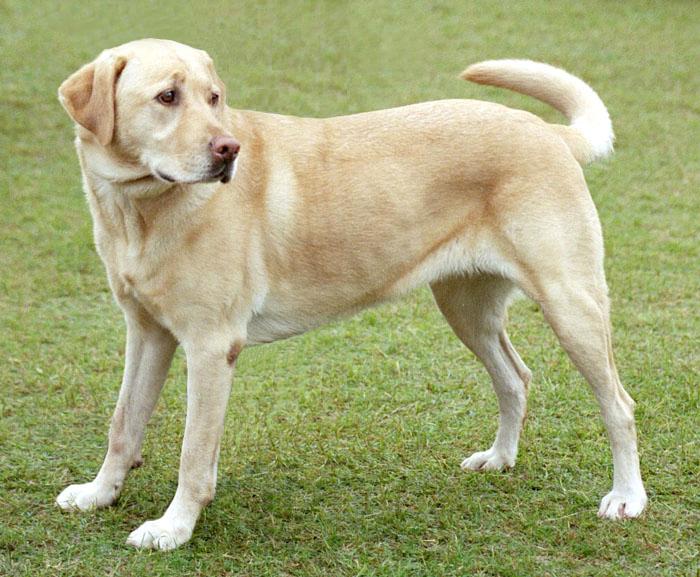
Yellow Labrador (Source: Wikipedia)
root@4f7f9ce3da83:/code# cd /home
root@4f7f9ce3da83:/home# which image_classifier.py
/code/image_classifier.py
root@4f7f9ce3da83:/home# image_classifier.py -h
usage: image_classifier.py [-h] image

positional arguments:
  image       the image to classify (str)

options:
  -h, --help  show this help message and exit
root@4f7f9ce3da83:/home# image_classifier.py /code/dog.jpg
Downloading: "https://download.pytorch.org/models/resnet101-cd907fc2.pth" to /root/.cache/torch/hub/checkpoints/resnet101-cd907fc2.pth
100%|████████████████████████████████████████████████████████████████████████████████████████████████| 171M/171M [00:01<00:00, 105MB/s]
Classifying /code/dog.jpg with ResNet101...
Labrador retriever: 70.6%
We now have functional versions of our script ‘installed’ in this container. Now would be a good time to execute the history command to see a record of the build process. When you are ready, type exit to exit the container and we can start writing these build steps into a Dockerfile.
Assemble a Dockerfile
After going through the build process interactively, we can translate our build
steps into a Dockerfile using the directives described below. Open up your copy
of Dockerfile with a text editor and enter the following:
The FROM Instruction
We can use the FROM instruction to start our new image from a known base image.
This should be the first line of our Dockerfile. In our scenario, we found that
the nvidia/cuda:12.4.1-cudnn-runtime-ubuntu22.04 image from the official Nvidia repository
on Docker Hub was a good place to start, so that is
how we will containerize it for others to use:
FROM nvidia/cuda:12.4.1-cudnn-runtime-ubuntu22.04
Base images typically take the form image_name:version. Avoid using the ‘latest’ version; it is hard to track where it came from and the identity of ‘latest’ can change.
Tip
Browse Docker Hub to discover other potentially useful base images. Keep an eye out for the ‘Official Image’ badge.
The RUN Instruction
We can install updates, install new software, or download code to our image by
running commands with the RUN instruction. In our case, our dependencies are Python3
and PyTorch, so we will use a few RUN instructions to update the base OS and install them
using the Ubuntu package manager (apt). Keep in mind that the the docker build
process cannot handle interactive prompts, so we use the -y flag with apt.
RUN apt-get update
RUN apt-get upgrade -y
RUN DEBIAN_FRONTEND=noninteractive apt-get install -y python3.10-full python3-pip
Tip
The DEBIAN_FRONTEND=noninteractive flag is used to suppress any
interactive prompts that may occur during the installation process using the Ubuntu
package manager apt. This is important because it will allow package installations
that aren’t caught by the -y flag (like tzdata). This is a common problem with
apt, so it is a good idea to include this flag in your Dockerfile.
Each RUN instruction creates an intermediate image (called a ‘layer’). Too many layers makes the Docker image less performant, and makes building less efficient. We can minimize the number of layers by combining RUN instructions. Dependencies that are more likely to change over time (e.g. Python3 libraries) still might be better off in in their own RUN instruction in order to save time building later on:
RUN apt-get update && \
    apt-get upgrade -y && \
    DEBIAN_FRONTEND=noninteractive apt-get install -y python3.10-full python3-pip
Tip
In the above code block, the character at the end of the lines causes the newline character to be ignored. This can make very long run-on lines with many commands separated by && easier to read.
We will add another RUN instruction to install the PyTorch dependencies. We can use the same command we used interactively:
RUN pip install torch==2.5.1 torchvision==0.20.1 torchaudio==2.5.1 --index-url https://download.pytorch.org/whl/cu124
The COPY Instruction
There are a couple different ways to get your source code inside the image. One
way is to use a RUN instruction with wget to pull your code from the web.
When you are developing, however, it is usually more practical to copy code in
from the Docker build context using the COPY instruction. For example, we can
copy our script to the root-level /code directory with the following
instructions:
COPY image_classifier.py /code/image_classifier.py
And, don’t forget to perform another RUN instruction to make the script executable:
RUN chmod +rx /code/image_classifier.py
The ENV Instruction
Another useful instruction is the ENV instruction. This allows the image
developer to set environment variables inside the container runtime. In our
interactive build, we added the /code folder to the PATH. We can do this
with ENV instructions as follows:
ENV PATH="/code:$PATH"
The CMD Instruction
Finally, we can use the CMD instruction to specify a default command to run
when the container starts. This is useful for setting a default behavior for the container.
In our case, we can set the default command to run our script with the -h flag to
display the help message if someone runs the container without specifying a command:
CMD ["image_classifier.py", "-h"]
Putting It All Together
The contents of the final Dockerfile should look like:
 1FROM nvidia/cuda:12.4.1-cudnn-runtime-ubuntu22.04
 2
 3RUN apt-get update && \
 4    apt-get upgrade -y && \
 5    DEBIAN_FRONTEND=noninteractive apt-get install -y python3.10-full python3-pip
 6
 7RUN pip install torch==2.5.1 torchvision==0.20.1 torchaudio==2.5.1 --index-url https://download.pytorch.org/whl/cu124
 8
 9COPY image_classifier.py /code/image_classifier.py
10
11RUN chmod +rx /code/image_classifier.py
12
13ENV PATH="/code:$PATH"
14
15CMD ["image_classifier.py", "-h"]
Build the Image
Once the Dockerfile is written and we are satisfied that we have minimized the number of layers, the next step is to build an image. Building a Docker image generally takes the form:
[local]$ docker build -t <dockerhubusername>/<code>:<version> .
The -t flag is used to name or ‘tag’ the image with a descriptive name and
version. Optionally, you can preface the tag with your Docker Hub username.
Adding that namespace allows you to push your image to a public registry and
share it with others. The trailing dot ‘.’ in the line above simply
indicates the location of the Dockerfile (a single ‘.’ means ‘the current
directory’).
To build the image, use:
[local]$ docker build -t username/image-classifier:0.1 .
Or for a different architecture (see Multi-architecture builds), you can use, for example:
[local]$ docker build --platform linux/arm64 -t username/image-classifier:0.1 .
Note
Don’t forget to replace ‘username’ with your Docker Hub username.
Use docker images to ensure you see a copy of your image has been built. You can
also use docker inspect to find out more information about the image.
[local]$ docker images
REPOSITORY                TAG                                IMAGE ID       CREATED          SIZE
eriksf/image-classifier   0.1                                a23875141d7a   34 seconds ago   6.01GB
nvidia/cuda               12.4.1-cudnn-runtime-ubuntu22.04   33f27d22a52d   11 months ago    3.1GB
...
[local]$ docker inspect username/image-classifier:0.1
If you need to rename your image, you can either re-tag it with docker tag, or
you can remove it with docker rmi and build it again. Issue each of the
commands on an empty command line to find out usage information.
Test the Image
We can test a newly-built image two ways: interactively and non-interactively.
In interactive testing, we will use docker run to start a shell inside the
image, just like we did when we were building it interactively. The difference
this time is that we are NOT mounting the code inside with the -v flag,
because the code is already in the container:
[local]$ docker run --rm -it -v $PWD:/images username/image-classifier:0.1 /bin/bash
...
root@10adb20f07b7:/# ls /code
image_classifier.py
root@10adb20f07b7:/# image_classifier.py /images/dog.jpg
Downloading: "https://download.pytorch.org/models/resnet101-cd907fc2.pth" to /root/.cache/torch/hub/checkpoints/resnet101-cd907fc2.pth
100%|████████████████████████████████████████████████████████████████████████████████████████████████| 171M/171M [00:01<00:00, 107MB/s]
Classifying /images/dog.jpg with ResNet101...
Labrador retriever: 70.6%
Here is an explanation of the options:
docker run      # run a container
--rm            # remove the container when we exit
-it             # interactively attach terminal to inside of container
-v $PWD:/images # mount the current directory to /images
username/...    # image and tag on local machine
/bin/bash       # shell to start inside container
Next, exit the container and test the code non-interactively. Notice we are calling
the container again with docker run, but instead of specifying an interactive
(-it) run, we just issue the command as we want to call it (’image_classifier.py /images/dog.jpg’)
on the command line:
[local]$ docker run --rm -v $PWD:/images username/image-classifier:0.1 image_classifier.py /images/dog.jpg
Downloading: "https://download.pytorch.org/models/resnet101-cd907fc2.pth" to /root/.cache/torch/hub/checkpoints/resnet101-cd907fc2.pth
100%|██████████| 171M/171M [00:01<00:00, 106MB/s]
Classifying /images/dog.jpg with ResNet101...
Labrador retriever: 70.6%
If there are no errors, the container is built and ready to share!